How To Protect Your Android Device Against Malwares.

Android devices have occupied the mobile phone market or better still I should say flooded the mobile phone market; there are just too many of them. They hold more than 50% of the market's share. In fact, research firm Strategy Analytics found that 81.3%, or 204.4 million, of smartphones shipped in the third quarter of 2013 were powered by Android. For this reason, though there aren't much mobile hackers as compared to PCs, there will be more attacks soon; more than we'd ever expect as more people are beginning to use mobile devices for their daily works. In this post, I will be taking you through some few steps on how to protect your device almost to 100% against malwares (malwares are mostly used by hackers to attack devices).

  1. Antivirus: This is the first thing any android user should install. Most anti virus softwares detect malwares and even security flaws in the Settings of android devices. Getting an anti virus won't hurt in anyway; you can choose to get it free if you just use your device for normal use but you should be thinking of dropping a few dollars in if you use your device for commercial purposes ( this is to say you would need to upgrade to pro for more features). Some anti virus apps for android are; Avast, AVG, Kaspersky, Bitdefender, McAfee, Norton and so on.
  2. Download apps from trusted sources: This I don't really need to say. It is very obvious that downloading from untrusted sources can cause so many problems in the long run. If you want to download apps but you can't or do not want to download them from the playstore, then you can go to Amazon, Samsung's store, or another major manufacturer or carrier. These sources always scan all apps placed there though some apps bypass the checks.
  3. Never leave "Unknown sources" enabled: Unknown sources should only be enabled when you need to installs apps manually outside the Playstore and mostly we do this when we trust the alternate source. Unfortunately, some websites can capitalize on this feature and install some malware infested apps on your device without your knowledge. To prevent this, go to Settings > Security > Unknown sources.
  4. Avoid pirated apps: This is quite obvious. Why would someone buy an app and wanna give it out for free? Well, some do it with a free heart but some also embed some codes in them before giving them out. This helps them get an easier asses to your device. To put in simpler terms, you're actually giving them the key to your phone instead of you giving them tough time breaking into your phone.
  5. Update your phone's software regularly: Recently, google and other major Android device manufacturers have decided to roll out security updates regularly to Android devices. This is to minimize the security flaws already encountered in Android. For you to be able to keep receiving updates, set your updates to automatic and this will help to secure your device more. In order to do this, go to Settings > About device > Software update and check the Auto update box.
  6. Security settings: Android comes with its own security features in the operating system that can prevent malicious attacks. Devices running Android 2.2 or higher have access to Google's malware scanner. Prior to installing an application you downloaded outside of the Play store, Google will scan the app and warn you of any potential threats.
    This feature is factory enabled and can be accessed in the Google Settings app in your device's app drawer. Alternatively, devices running Android 4.2 or higher can access the feature by going to Settings > Security > Verify apps.
  7. Read your apps' permission: Before you install any app be it from the Playstore or any other source, make sure you do what more than 90% of all Android users fail to do; read the permissions the app is asking. Sometimes apps can ask for very weird permissions. An example is a camera app asking for your location. Whoa! all you want to do is take a picture and not put yourself on google map. Some of the permissions they take aid some developers get easy access to your device and do anything they want with it.
These are the few ways you can protect your Android device against external attacks

Hope these will help you protect your Android device better. If you have any questions or suggestion, don't forget to drop it in the comment box.

Android Tricks: Top 20 Every User Should know.

Android devices are the most used mobile devices in the world now and whether you are new to them or you've been using them for sometime now, there is still much that you haven't discovered yet and I'm not excluded. That surely needs to change; at least we should all know the basics. In this post, I'll be taking you through 20 top Android tricks that every Android user should know. 

  1. Download Anti-Virus: Just like how hackers can take over your computer, they can do same with your Android devices device and use it for their own purpose. I'm very sure no one wants to go to jail cos of something they  did not do. Hackers can take over you device and use it to do evil stuff like help in hacking a bank or any other thing profitable to them. There are many Anti-Virus apps in the PlayStore. You can download AVG, Avast, 360 security and all others. These Anti-Virus apps will help protect you against external attacks.
  2. Set Password: One of the most important things any human needs is enough security and privacy and setting up a password does just that. It does not only protect you to an extent against theft but it also does protect you from other people having an easy access to your files that you are keeping on your devices. To set up password, Head to Settings > Lock screen > Screen lock and select either Pattern, Pin, Password or Face lock.
  3. Save some juice: Android devices are known for their weak battery management system and this is broadly due some apps' excessive use of the phone's juice for their functioning. To save more battery life, stop all background apps and also uninstall apps that you no longer use. Stopping background apps and uninstalling apps will be talked more into details later on in this post. Check out how to save more juice here.
  4. Turn off auto-correction: Auto correction is very helpful but it can sometimes be really troublesome. Imagine trying to type where and the keyboard predicts why and it auto-adds itself and you without looking through your work well you send it as an e-mail for something quite important. Just imagining the kind of look on your face when you look at it later on. To turn off this good but disastrous feature, go to Settings Language and input, now tap the settings button next to the keyboard you are using and scroll down till you see Predictive text, tap on it and turn it off.
  5. Enable or disable screen rotation: This might not sound like something really much needed but think of watching a video and the screen keeps rotating. I'm imagining how frustrated you will be watching the video. To turn this feature off, swipe down from the top of your screen and on the quick settings bar, tap the auto rotation button to disable it or simply go to Settings>Display then tap the already checked Auto Rotate Screen to disable it.
  6. Check for & Download updates: When the phone is released, it comes with loads of bugs ( the release of the galaxy S6 and its edge is one of the biggest examples) and most of these bugs are fixed after an update. To check for updates, go to Settings About Device Software update>Update. After you tap the Update button, updates will be searched for and if any is available, you will be able to download.
  7. Increase your typing speed with by Swiping: Everyone wants to type with really high speed and accuracy but this seems to be difficult on smartphones. Well, a good reason why it has the swipe feature is available. With this, I'm quite sure you will be able to boost your typing speed by 500%. To enable this, go to Settings>Language and input now tap the settings button next to your default keyboard. Scroll down till you see Keyboard swipe; tap it and select continuous flow.
  8. Add multiple Email accounts to your device: This feature makes it possible for you to have all your email accounts very much organized in a single 'gmail' app saving you that space that you will use for other apps for different email accounts. This also means that you will now be able to synchronize data from more than one gmail account to your device. To do this, open the gmail app, tap the navigation button now tap the Arrow button facing down and tap add account. Now select you email type [gmail (google mail) or Personal (Yahoo, Outlook, ...) and sign in via the app.
  9. Stop apps from giving notifications: Some notifications can literally be termed 'spam'; they just pop up and have no use. Stop these annoying notifications from showing up by going to Settings>Application manager. Now select that particular app and tap the already checked (marked) Show notifications box.
  10. Download essential apps: The Playstore is filled with just too many apps that Android users get confused as to what to start with. There are variety of choices but you need the best to kickstart successfully. To know which apps to download, check out a post on the top 10 android apps every android user should have.
  11. Turn on flash for notification: This feature becomes really handy when you don't want to miss any notification and also want to make your phone silent but still know it when you receive any notification. Before you proceed with this, know that it consumes more power hence your phone's battery will actually drain faster than it normally will. For Samsung owners, it should be under Settings > Accessibility > Flash Notification. On recent LG phones it may be found under Settings > Accessibility > Hearing > Flash Alerts. It doesn't matter the phone you are using; you should mostly find this under your Accessibility menu.
  12. Download & Install Adobe flash: Though this app is not available in the PlayStore, it is really useful when you need to use some live streaming apps. This will enable you easily stream from live video streaming apps. Check out how to watch Live TV free on your Android device. To download Adobe flash player for your device, go here.
  13. Disable automatic update of apps: When you have really slow WiFi connection, it is very advisable to disable automatic updates since there will be an every minute background check for updates which will make your connection slower and even consume your battery the more. To disable this, open the PlayStore app,  tap the Menu button, scroll down and tap settings. In the general settings, tap Auto-update apps and select Do not auto-update apps.
  14. Increase performance: Here, I will not be talking much about how to make your device fast but just one little trick that can boost its speed to an extent but if you want a detailed info, click here. For this, go to Settings > Developer options >  Windows animation scale and tap Animation off. If you do not see the Developer options, go to About device, then tap on Build Number Seven (7) times and it will show up.
  15. Enable side-loading: Side-loading is simply the term used to describe the act of being able to install apps from other sources aside the PlayStore. You always won't want to download apps from the PlayStore but rather would want to get it from friends or maybe download from other sources ( after all there are so many great apps that are not in the Playstore). To allow such installations, go to Settings > Security > Unknown sources. There you should see a prompt after you select it, tap okay and you are good to go.
  16. Set mobile data limit: This becomes handy if you use cellular internet connection more. In this case, you will need to save more data in order not to pay too much. To set data limit, head to Settings > Data usage > Data usage cycle > Change cycle ( this is where you will set the date duration in which you want your data to be monitored) > now check the Set mobile data limit box. Tap the red bar and hit the up and down arrows to set the limit meter to match your data plan. Once you complete this step, you will automatically be switched to WiFi if available and will be notified when you hit your limit.
  17. Disable background data usage: Most apps use your data in the background (mostly for stuff you don't need). Now after your limit is set, go to Settings > Data usage.  Tap on any of the apps whose background data usage you would want to stop, scroll down and check the Restrict background data box.
  18. Take screenshot: There is always something you do on your phone that you would want someone else  to see. It could be the nice layout of your homescreen, a conversation, a background wallpaper that you would want to show with all apps showing it and so much more and this is the point in time where screenshooting becomes useful. Every device has its own way but for most devices without a pressable home button, the Volume down and Power buttons are pressed simultaneously. For those with pressable home button, the home and Power buttons are mostly pressed simultaneously to take screenshots. You can get more info here.
  19. GPS and Map: This may sound useless sometimes but I can say it is worth it. Imagine losing your phone with the GPS turned off - you will never get to know its exact location but if its the other way round, you just need to google "find my phone and "boom" there you are. Also with the map, you will be able to go so many places without ever asking for direction.To turn on GPS through settings, go to Settings > Location and toggle it on.
  20. Find your lost phone easily: No matter how hard you try, you may leave your phone somewhere while busy with something or maybe you just drop it somewhere outside home. Well for you to be able to find your phone easily, you need to first make sure that your device is easily locatable. To enable this,  go to Settings  > Security > Device administrators. This service is turned on by default but you should make sure it is activated at anytime and also remember to always keep your GPS on. 
Got any other suggestion? Drop it in the comment box.

Windows 10 First Reviews In: It looks like Microsoft Has Got It Right This Time around.

While some are still awaiting the roll out of Windows 10, some have already got it and are speaking good of it. Most of the people are giving much praise to the introduction of the Start Menu again, Cortana and the Look and feel of the new OS. Not much has been said about the Microsoft Edge browser but there seems to be some hope for it too. Unlike Windows 8 which brought down Microsoft reign to a certain level, Windows 10 seems to be what Microsoft needs to hit back again. Let's have a look at what some people are saying.

Yahoo's David Pogue writes,
You really are going to love Windows 10. You’ll almost certainly want to upgrade your computers to it, especially since it’s free," and that "if you’re a PC veteran, then you’ll recognize Windows 10: It’s pretty much Windows 7, with Cortana, nicer typography, and a few new features.
Also, The Verge's Tom Warren says,
Windows 10 has some great additions over Windows 8 and Windows 7, and it really feels like a good blend of the familiarity of Windows 7 and some of the new features of Windows 8. It’s not irritating to use, and you don’t need a tutorial to find the Start menu. It just works like you’d expect.
And also from Wired,
The subtle, remarkable feat of Windows 10 is that it manages to introduce equally powerful new ideas without being so overbearing. If you upgrade your laptop from Windows 7 and steadfastly refuse to use any of the new features, the new OS will feel mostly like an aesthetic makeover. The design is cleaner and flatter, with heavier contrast between icons and backgrounds and a slightly darker overall look. It’s more consistent, too, as if Microsoft’s designers finally made it deep into the menus. But it’s the same Windows you’ve always known. Start Menu and everything. ... The great thing about Windows 10 is that there's no wrong way to use it.
From the above reviews, it can be noted that all three reviews are talking much about the how much user friendly the new OS is. It can be noted, even from Microsoft's official screenshots and also Insiders' screenshots that this OS is a combination of both Windows 8 and Windows 7 (There more than twice the number of people using Windows 7 than Windows 8)

Amidst all these, there will for sure be so many bugs coming with the OS and also a lot of Windows apps have not been upgraded to the new OS yet. It is therefore advisable not to upgrade just yet. You should wait for 30 to 60 days and by then, most of the bugs would have been fixed plus most software companies would have upgraded as well.

It looks like the future is really bright for the tech giants; it looks like they've got it right this time around but the question is, is this good enough to make Microsoft's reign come back to life again?

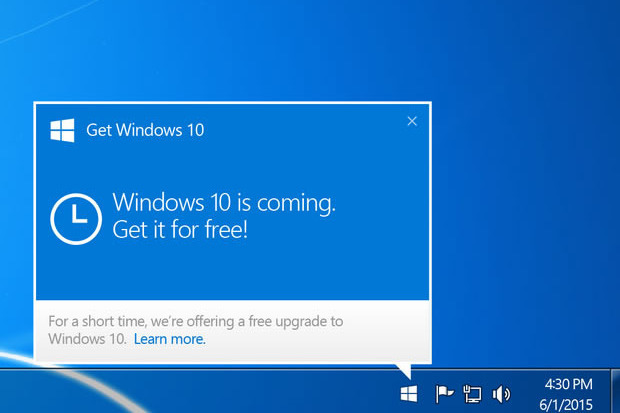
Windows 10 Icon Missing? Check out how to get it.

How To Get The Missing Windows 10 App Icon

It's just few days more till the "Big Day". The day on which the windows 10 update will be released for free. You can choose to reserve it in order to get it immediately it is released or wait for it to be released and get to update if you meet the minimum requirements.

First let's take a look at the requirements for upgrade to and also for you to be able to get the reserve button for Windows 10.

To be able to upgrade to or get the reserve icon for Windows 10,
  • Your device must be up-to-date with at least Windows 7 SP1 or Windows 8.1 Update
  • Windows Update is turned on and set to received updates automatically 
  • You’ve not blocked or uninstalled the necessary Windows Update functionality. 
  • Your device is not running genuine Windows 
  • Your device is not running Windows 7 Enterprise, Windows 8/8.1 Enterprise, or Windows RT/RT 8.1( these are excluded from the reservation offer.) 
If you meet all the requirements ablove but you are still not seeing the Icon, follow the instructions below to get the icon.
  1. Open Notepad
  2. Copy the text below and paste it into Notepad:

REG QUERY "HKLM\SOFTWARE\Microsoft\Windows NT\CurrentVersion\AppCompatFlags\UpgradeExperienceIndicators" /v UpgEx | findstr UpgEx

if "%errorlevel%" == "0" GOTO RunGWX

reg add "HKLM\SOFTWARE\Microsoft\Windows NT\CurrentVersion\AppCompatFlags\Appraiser" /v UtcOnetimeSend /t REG_DWORD /d 1 /f

schtasks /run /TN "\Microsoft\Windows\Application Experience\Microsoft Compatibility Appraiser"

:CompatCheckRunning

schtasks /query /TN "\Microsoft\Windows\Application Experience\Microsoft Compatibility Appraiser"

schtasks /query /TN "\Microsoft\Windows\Application Experience\Microsoft Compatibility Appraiser" | findstr Ready

if NOT "%errorlevel%" == "0" ping localhost >nul &goto :CompatCheckRunning

:RunGWX

schtasks /run /TN "\Microsoft\Windows\Setup\gwx\refreshgwxconfig"


  1. Click File, and then Save As
  2. In the File name box, change the file name to ReserveWin10.cmd 
  3. Then click the drop-down next to Save as type, and select All files (*.*) 
  4. Select the folder you would like to save the file to. For this example, let’s choose to save the file to the C:/Temp folder. Then click Save. 
  5. Open an elevated command prompt. (From the Start screen or Start menu, type Command Prompt in the search box, and then in the list of results, right-click Command Prompt, and selectRun as administrator.) 
  6. Finally, run the file from the location you saved to in Step 6. In this example, you would type the following in the Command Prompt window and hit Enter: C:/Temp/ReserveWin10.cmd
This compatibility appraiser can take up to 30 minutes to run; the script will continuously give status report. If the script is failing in an infinite loop, it simply means you don't have all the prerequisite Windows  updates (Manually check for updates if this is the case).

So this is the best way to get the missing windows 10 icon.

You can check the windows 10 features here.

If you have any problem, feel free to leave a comment.

Lumia 950 great specs leak: Is this the wind of change for Microsoft phones?


As we all may know, Microsoft's Mobile Phone Business is actually still in a very bad shape now. But Microsoft is not really giving up on it. Earlier today, some leaks popped up online from china revealing some great features of the Lumia 950 and Lumia 950XL.

According to IT Home, the Lumia 950 and Lumia 950 XL will launch sometime in October or November with a metal design, expandable storage, removable batteries and Windows 10 software. The smaller Lumia 950 codename Talkman will also allegedly sport a 5.2-inch 2K display, a Snapdragon 808 processor, 3GB of RAM, 32GB of built-in storage, a 20-megapixel rear camera, a 5-megapixel front-facing camera, a 3000mAh battery and USB-C. The Lumia 950 XL (codename Cityman) may offer similar hardware, but with a 5.7-inch display, a Snapdragon 810 chip, a 3300mAh battery and something called “three flash” for its rear camera.

This may be the real beginning for Microsoft and may be one of those changes that windows 10 will bring to the life of end users. It is great news to know that the phones will possess metallic design, battery swapping and expandable memory features.

What do you think of the Microsoft Lumia 950 and Lumia 950XL concept? Is it good enough to battle for grounds in the mobile devices market? Please Leave your comments.

The Galaxy s6 edge plus photos leak online.

Two weeks ago, it was rumoured that the Samsung Galaxy Note 5 and Galaxy S6 edge plus will be released in August but it now seem like it's getting into being more of a reality than just a mere rumour. Earlier yesterday, some photos which was reportedly sent to a German News site, All about Samsung which seem to be the Galaxy S6 edge just proves it more that the S6 edge plus is very close to release.

Though no details were given as to it's specs, it is very clear from the photos taken that it has the same screen size as the Galaxy Note 4 which around 5.7-inches. Also judging from previous leaks, it is obvious that it will feature an octa-core Exynos 7420 chip but that is all we can say is known as at now.

So reported by Android Authority that both phones have been seen passing through the FCC with cellular bands corresponding to AT&T, Verizon, T-Mobile and U.S. Cellular,  it does begin to feel like we are merely counting down the days until we get to see both phones for ourselves.

View the rest of the images below.