Intel's Skylake chips: What is the next big change in the CPU world?

In January 2014, Intel launched the fifth generation of processors for laptops, hybrids, desktops and tablets known by the codename Broadwell. The CPUs (central processing units) as we all may know are the "brains" of the PC and Intel has being working hard enough to stay on top when it comes to their production. Those Broadwell chips power most of the Windows PCs and Macs  available on the market right now but a new generation is about being released under the codename Skylake. Let's take a look at a bit of what we should expect.

So the main question is, what's new in Skylake?

Though much is not known about this 6th generation of Intel's CPU, we can surely say that it will be a bit better than the older generations. In fact, we can say that we'll most likely see a modest improvement to both application performance and a good improvement in battery life (when it comes to mobile products).

We may also see a push towards wire-free computing, with many Skylake systems supporting wireless charging solutions. Intel is reportedly working on getting automakers, hotel chains and coffee shops to install the charging stations. Also coming to some Skylake systems, Thunderbolt 3, a faster version of Intel's data connection standard, this time using a standard USB-C connection.

Will new Windows 10 PCs run on Skylake?

That's is a NO. Windows 10 launches on July 29 while with all indications, Skylake will be launched somewhere in August. However, there is enough assurance that there will be no compatibility problem between the new Microsoft OS and the Intel processors.

Is this a big step?

Probably not. As we all know, Intel enjoys releasing its updates in "slip" and "slide" approach. The "slip" represents a major structural change, such as moving to a 14nm manufacturing process (which refers to the size of a transistor on the chip), as happened with the fifth-gen Broadwell chips. That was an improvement on the prior 22nm chips that appeared in 2013, codenamed Haswell. The "slide" represents a refinement and incremental improvement on top of that, as in the case of Skylake.
Interestingly, the purported post-Skylake Intel chip generation, code-named Kaby Lake, is also keeping the same 14nm process, bumping the expecting shrinkage to 10nm manufacturing to the subsequent generation. That 10nm chip is currently code-named Cannonlake, and now expected in late 2017. One could say Intel plans on releasing two "slip" generations of chips in a row.

From all indications, no one should actually hold off buying a new PC or Mac because of Skylake cos  there won't be any major upgrade and it will of course take few months for and upgrade to arrive to your preferred brand.

Galaxy Note 5 to be launched in August: It is said to beat the new Iphone.

Samsung is on the verge of releasing the next Galaxy Note earlier than they usually do. Samsung will be doing the launching in the middle of August; reports say. By doing this, there is the likelihood that Samsung would beat the new iPhone unveiling which is mostly done in September.

The Galaxy Note as we all know is almost the size of tablets and hence the name "phablet". If Samsung is able to launch the device in August, then there will little job for them to do in terms of competing for attention. The Galaxy Note 5 launch is expected to happen in a "major U.S city" which has not been decided yet - only time can tell. This is something quite different since all previous Notes were announced at the IFA conference in Berlin. The decision may be cos of how Samsung has been able to gain grounds in the U.S this year and even last year.

Earlier this week, Samsung said it would miss its forecasts for the second quarter and its operating profit from April to June will likely slide 4% on an annual basis to 6.9 trillion won ($6.14 billion). Financial analysts were forecasting earnings at 7.2 trillion won ($6.41 billion). One of the reasons why Samsung will miss its forecasts is due to the demand for the Galaxy S6 Edge.

Apparently, Samsung underestimated consumer demand for the Galaxy S6 Edge since it costs more and because previous Edge devices did not sell as well. Samsung reportedly believed that the Samsung Galaxy S6 would outsell the Samsung Galaxy S6 Edge by 4 to 1, but the demand was actually about 1 to 1. The heavy demand for the Samsung Galaxy S6 Edge ended up causing a major shortage. Wow! I'm surprised as well.

Some of the features that are rumored to come with the Galaxy Note 5 include a 5.7-inch Quad HD display, an Exynos 7422 processor, a 4100 mAh battery, an upgraded fingerprint sensor, bottom edge speakers and a metal/glass case that is similar to the Galaxy S6.


What do you think? Is this a good move? Please leave a comment.

Best iPhone photography hacks: 5 best that make it so much fun.

Taking pictures is a daily routine now. You need to be creative and with some few hacks added, you can surely go beyond the limits and bring out the silver lining in your pictures. The photography hacks we'll be going through will surely give you the chance to explore the heights in iPhone photography. In as much as this may sound tough, it is actually very easy to deal with.

  1. The headphone snap: This method of taking pictures with iPhone makes selfie taking more lively. All you need to do is create a nice stand where you can put the phone. Launch the camera app and press the volume down button. This will automatically take a shot.
  2. The Underwater snap: This may sound risky but in all honesty, it is really safe, All you need to do is put a clean plane glass inside the water making sure it doesn't fully immerse in the water. Now drop the phone the glass and tap the capture button. Now have a look at that awesome under water picture you just took.
  3. Panorama: Pano allows you take up to 240 degrees photo in one single photo shoot. To take a pano, First Launch the Camera app on your iPhone — note that the iPhone 4s and newer support panorama mode. Then Swipe to the left to change modes. You'll need to do this two times to switch from normal camera mode to panorama mode. The iPhone defaults to portrait mode from panoramas so make sure you are holding your iPhone that way and not in landscape mode. By default, panoramas always start on the left and want you to pan to the right. You can change this by tapping the arrow to change directions. Tap the capture button to start taking a panoramic photo. Keep your feet firmly planted and make sure the arrow stays on the line as you pan from right to left. Once you're done taking your pano, simply tap the capture button again.
  4. Macro lens: This just requires you to put a water droplet on the rear camera and take a very creative shot; after all a little drop won't cause anything. This will give you a bit of blur and a  bit of zoom which will make your photo just perfect.
  5. Burst mode: First, Launch the Camera app on your iPhone 5s, iPhone 6, iPhone 6 Plus, or iPad Air 2. In photo mode, hold down on the shutter button to capture 10 frames per second. Release the shutter button when you're done capturing. Switch to the Photos app by tapping the photo thumbnail at the bottom left while in the Camera app — or by clicking the Home button and launching the Photos app manually. Tap on the burst mode stack you want to view — photos captured in burst mode appear as stacks in the Photos app. Then Tap on Select... at the bottom. Scroll through all the photos that burst mode captured and tap the blue checkmark on each photo you'd like to keep. Tap on Done in the upper right hand corner when you've checked the ones you'd like to keep. Tap Keep Everything if you want to keep all the photos in your burst (in case you want to change your mind later) or tap Keep Only [number] Favorites to trash the photos you didn't pick and keep only the ones you did (if you're sure).
Tell us how this tips worked for you in the comment box. And feel free to leave your questions and suggestions.

Top 6 smartphones under USD 200

There are so many smartphones in the market. There are some that are really powerful hence can withstand great pressure from usage and are at really high prices but there also some that can that are also powerful and are at really low prices (below $200). In this post, we'll be looking at the top 6 budget smartphones under $200.

You can also check out the top 10 must have Android apps.

  •  Motorola Moto G (2nd generation) : The moto G gen2 also known as the moto G+ is one powerful android device that gives everything an Android needs. Released in September 2014, this device is running 4.4.4 kitkat which is upgradable to lollipop and probably Android M in future. The device is running on a Qualcomm MSM8226 Snapdragon 400 Quad-core with a speed of 1.2GHz and GPU of Adreno 305. It has internal storage of 8GB, RAM of 1GB and an expandable microSD of up to 32GB. It also has a rear cam of 8MP. You can get it a price of $176 or even lower. 
    The Motorola Moto G (2nd Generation)
  • Microsoft Lumia 640 - Single Sim: This phone which was released in March 2015 is one powerful device running the latest version of Windows, Windows 8.1 and will receive an upgrade to Windows 10 when the update is rolled out. Running on Qualcomm  MSM8926 Snapdragon 400 Chipset, CPU Quad-core 1.2 GHz Cortex-A7 and GPU Adreno 305, it also boasts of a Card slot microSD, of up to 128 GB and Internal 8 GB, 1 GB RAM. It also has a rear cam of 8MP. You can get it at $191 or less.
    The Microsoft Lumia 640

  • Motorola Moto E (2nd Generation): This device is also another device that is below $200 and is manageable. I said manageable because it has few limitations. Released in February 2015, it is available in two models (the 3G and LTE model). It is also running the Android v5.0 and upgradeable to 5.1. It is running on Qualcomm Snapdragon 200 - 3G model and Qualcomm Snapdragon 410 - LTE model, CPU Quad-core 1.2 GHz Cortex-A7 - 3G model and
    Quad-core 1.2 GHz Cortex-A53 - LTE model and GPU Adreno 302 - 3G model
    Adreno 306 - LTE model. It has a rear cam of 5MP, an internal storage of 8GB, RAM of 1GB and expandable of up to 32GB. You can get it at $99.99 or even lower.
    The Motorola Moto E (2nd Generation)
  • HTC Desire 510:  This HTC device which was released in September 2014 is one good device going out for a good budget price of $99.99 or less and is running Android 4.4.2. The device is performing on Chipset Qualcomm MSM8916 Snapdragon 410 for the EU model and Qualcomm Snapdragon 400 for the USA model, CPU of Quad-core 1.2 GHz Cortex-A53for the EU model for Quad-core 1.2 GHz Cortex-A7 for the USA model and GPU of Adreno 306 for the EU model Adreno 305 for the USA model.
    The HTC Desire 510

  • LG Tribute: This is also another device that is far below the USD 200 tagline. It was released in in October 2015 and hence running Android 4.4.2.  It is running with Chipset Qualcomm MSM8926 Snapdragon 400 on CPU Quad-core 1.2 GHz and GPU Adreno 305. It has a Card slot microSD, of up to 32 GB Internal 4 GB amd 1 GB RAM. It also has a primary camera of 5MP. You can get it at a price as low as $55.
    The LG Tribute
  • Nokia Lumia 635: The Nokia Lumia 635 is one of the mobile devices running Windows 8.1 and is at a very much budgeted price. Released in June 2014, it is running on a Chipset of Qualcomm Snapdragon 400, CPU Quad-core 1.2 GHz Cortex-A7 and GPU of Adreno 305. It also has Card slot microSD, of up to 128 GB an Internal Storage of 8 GB and 512 MB/ 1 GB RAM. You get this for as low as $49.
    The Nokia Lumia 635

How to use an Android device as a webcam/spycam

Do you have a little problem with your webcam which will take you sometime to fix? Do you need to place a camera somewhere and still be able to see what's going on? If your answer is 'yes' to any of these questions, then we are about to get an easier and cheaper way just by using your Android device. We will be using IP Webcam (for the spycam) and Droidcam (for the webcam but you will need the desktop client for a better experience) and an old Android device. All the apps are available on Playstore so click in the links in red, download and let's get started. We will begin with the IP Webcam. But before we begin, factory reser the device in order for it to run at its best (that's if you're using an old and abandoned device).

  • IP webcam: I have tried numerous apps meant for wireless live camera feed from Android devices but this emerged the best. With its ability give live video feed, allow take pictures from the Android (using a modern desktop browser) and even stream right into a media player like vlc almost flawlessly makes me conclude that it's the best for the job. Before we start with the real 'things, let's do some quick settings. First, install the application from the Play Store. Once the application is installed, launch it, and you’ll be dumped right into the configuration panel. We are going to leave the defaults alone—once you have tested the camera you can begin tweaking settings to meet your needs if necessary. Of the few settings we are going to tweak, the first is to scroll down and check Stream on device boot, we want our security camera to turn back on in the event that the Android device crashes and restarts. Once you've tweaked the basic settings, you can now position you cam so we can start. You can also tether WiFi from your device to enable the connection.

HOW TO USE IP WEBCAM

  1. Scroll to the bottom of the configuration panel and click Start server.
  2. Launch a modern browser on your PC and type the IP address you see on your phone's screen when the app is opened in your address bar go.
  3. When the IP webcam page opens, on the panel as shown here, select Flash, Browser, Java (require Java plugin to work) , Javascript, Fullscreen. When any of them is pressed, your live feed screen should automatically launch.
  4. If you want to record the live feeds, scroll down, type the name you want to save the recording as and click the record button.
  5. You can useto take and save still photos as well.
  6. To access other viewing methods such as VLC and others, Click on Other viewing methods and select your preferred method from the drop down.

  • Droidcam: This app works far better if you want to use your Android device as a Webcam. All you need to do is download the app from the store and also download the desktop client from the official site and you are good to go. This will not involve much since we will only be using it as a Webcam. Before installing the desktop client, close all running applications first.
  1. After installing the app on your android and also doing same for the desktop client, open them both. 
  2. Now type the IP address you see on you Android into the space provided Device ip for that of the desktop client. And also fill in the space for DroidCam Port too.
  3. Now check the boxes you prefer and also select your preferred Video Quality and click Start.
  4. Open Skype and on the quick access bar, click on Tools, then go to options. On the new window that will open, click on Video settings next Select webcam and click on the drop down bar and select Droidcam Source 3 ( for a higher resolution) or Droidcam Source Mini (240p) ( for lower resolution)
  5. Now Restart Skype and you should be able to use your android device as a wireless webcam now.
Your views are equally important. Drop them in the comment box.

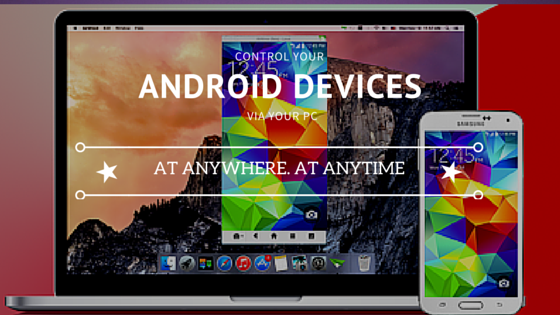
How to Use your android device everywhere through your PC; take total control of your device

Switching between devices is really hectic especially if you are a busy person who doesn't have enough time for such a job. But the truth is that the more devices are released, the more we yearn for them. Phones are they most common and Android devices top the list cos so many of them are released each year. What of being able to use all those devices on one PC so you can easily do work on your PC and still be able to reply all messages and calls from your Android devices via the same PC? Well, that's exactly what I will be walking you through today.

Let's roll

There are many apps on Playstore that try to do the job but they only end up showing notifications and some other things and nothing more but Airdroid does the real job. And you don't necessarily need to be on the same network which means distance is not a barrier between you and your device provided both your PC device are connected to the internet.

WHAT CAN AIRDROID DO?

Airdroid is just awesome and can be used to do almost everything you can use your Android device for. You can do all that using a PC and some of the things even through another phone. This app can be used to view contacts, receive calls, send and download files and open and use any app on the Android device. In fact, you take total control of your Android device through your PC. And if you're on premium, you are spoilt for choice

HOW TO USE AIRDROID

For you to be able to use Airdroid, you need to download the app for your Android device and your Windows or Mac PC by clicking/tapping on the links in red, Install and run it on both your Android and PC.
  • For file transfer: Using Android for file transfer is fast, safe and convenient. All you need to do is;
  1. Open the app on your Android device. And if your device is already connected to a WiFi, connect your PC to the same network but if no WiFi network is available, tap on the hotspot
    button in order for the device to tether WiFi to your PC (Your data will not consumed when you tether WiFi for file transfer using Airdroid)
  2. When your PC is connected to the WiFi, type the IP address
    you see into you computer's browser's address bar and click go.
  3. When prompted on your Android, tap accept in order to access all your files via the computer's browser.
  4. Now you can select the file type you want to download from the device to the PC and then select the folder, then the file and click download for the transfer to commence (The files download or upload at at least 1mb/s)
  • As a webcam or security cam: Since the app allows you to use your camera via a browser on your PC, you can keep your android device anywhere in the house, be anywhere in the world and still be able to view whatever is going on where the device's camera can view provided you Android device and the PC are both connected to the internet. If you need to use the camera of your phone while on different networks then you will need to Sign up but if on the same network then you don't need to do anything more. There are two methods. By using the desktop client or using a browser.

USING A BROWSER FOR AIRDROID CAMERA USAGE


THE BROWSER METHOD
  1. Open the app on your Android device and if your device is already connected to a WiFi, connect your PC to the same network but if no WiFi network is available, tap on the hotspot button in order for the device to tether WiFi to your PC. If you are far from the device and therefore cannot be on the same network then you need sign up in order to use it.
  2. When your PC is connected to the WiFi, type the IP address you see into you computer's browser's address bar and click go. If you are not on the same network, go to web.airdroid.com, and sign in.
  3. When prompted on your Android, tap accept in order to access all your files via the computer's browser (This will not be displayed when you sign in)
  4. When the page opens, select the camera app and you are good to go.

USING THE DESKTOP CLIENT FOR CAMERA

  1. Open the desktop client and sign in.
  2. Click on the Airmirror
    button and allow it to connect to your Android device.
  3. When it is connected, you device's screen will automatically show. Open your camera app via the Airmirror and you will be able to see everything going on. You can choose between the front and back camera that's if you have two.
  • The Airdroid desktop client and its uses: The Airdroid desktop client comes with loads of features that are so mouth watering. It allows you to use your Android device from your PC like you will if it were in your hands. You can actually do anything like set your time, take pictures, record videos, go to settings, play games and any other thing you can use your Android for.

HOW TO USE ANDROID DESKTOP CLIENT TO CONTROL YOUR ANDROID

  1.  This button is the profile button. This is where you will be able to see your devices, your email address and also be able to setup your account.
  2.  This button is the file transfer button where you will be able to send files from the PC to any of your devices without being with them provided they are connected to the internet. 
  3.  This is the notifications button. All notifications that pop up on your screen are stored here. You can clear the notifications anytime you want by clicking the delete button.
  4. The messages button is where you can read all the text messages you've received and also send messages. 
  5.  This is where you view your calls log
  6. The contacts button enables you to view all your contacts.
  7. The Airmirror button (which I call the super button) is where everything lies. This is where you are able to remotely control your android device from anywhere in the world just by a single click. When the button is clicked, the Airmirror launches and you are able to use your device's screen on your desktop. With this, you can make calls, use all apps, send and receive messages and also go into your Android device's settings. The Airmirror can also be launched just by click on notifications when they pop  up on the desktop(this will automatically launch the specific app).
What do you think about Airdroid? Do you know any other app that performs the same function? Your feedback is really important,