Amazon fire HD kids tablet launched: Free replacement if broken within 48 months of purchase.

Kids love tablets. Kids don't want toys anymore. Kids break tablets but they want the real thing. These are the main reasons why amazon introduced the Amazon fire HD tablet for kids. The tablet comes in blue, green or pink cover and rages from $99 to $189 depending on the memory. They memories available are 8GB and 16GB.

I will say this is great news for all parents. The reasons are enormous but they main are the free replacement and the free apps. These simply mean when your child breaks the tablet, all you've got to do is send it to Amazon for free replacement with  no questions and your child also gets access to loads of kids apps, games, videos, books and so much more.

Jorrit Van der Meulen, Vice President, Amazon Devices said: “Fire HD Kids Edition offers the best of both worlds for parents and kids.

"With the two-year, no-questions-asked, worry-free guarantee, and Fire for Kids parental controls, parents can rest assured that the device is well protected and that they’ll never be surprised by a bill, unwanted ads or social media posts."
The free games included feature popular children's TV characters like Thomas & Friends, Fireman Sam, Avengers, Mickey Mouse, Dora the Explorer, The Penguins of Madagascar, Shaun the Sheep, and loads more.
I believe this is the kind of sale system every parent wants.
Go grab one for your kid. Amazon fire kids tablet

Windows 10 System requirements: official release for phone and desktop

Though all Windows 7 and 8 users will be able to get a free update of the Windows 10, not all will be able to install it since its system requirements differ a bit. Check out the requirements below to know if your PC or phone will be able to run it smoothly.

Let's have a look at the requirements for both PC and phone»»»

Windows 10 requirement for PC:

  • Processor: 1 GB or faster processor or SoC
  • Ram: 1 GB for 32-bit or 2GB for 64-bit
  • Storage Disk: 16GB for 32-bit OS or 20GB for 64-bit OS
  • Graphics: DirectX 9 or later with WDM 1.0 driver
  • Display: 800×600 pixels resolution or higher

Windows 10 requirement for Mobile:

  • Graphics: DirectX 9
  • Memory: 512MB for 32-bit
  • Firmware: UEFI 2.3.1 or Secure boot enabled
  • Storage: 4GB of flash or SD card required for 4GB devices
  • Buttons: Power, Volume Up/Down or Start, back, search
  • Display: 3-7.99 inches
Check out the official feature highlight video below. 

Windows 10 official retail price released.

Microsoft said that the Windows 10 will be free to update for all devices running the genuine version of Windows 7 or 8. But unfortunately, some may be running neither of the above and therefore will need to buy. If you are running them, then you really need to be smiling now coz you'll be saving a 100 to 200 dollars.

Microsoft confirmed Monday that the company will sell Windows 10 at retail for the same price as Windows 8.1: $119 for Windows 10 Home, $199 for Windows 10 Professional, and $99 for a Windows 10 Pro Pack to jump from a licensed copy of Windows 10 Home to the Professional version.

To many companies, the release of Windows 10 will in all honesty be one of the greatest things that will happen to them. With the sleek design, great interface, assumed great customer support, and great new features, most manufacturing companies are saying Windows 10 will bring back Windows' lost customers and even attract a very good number of new ones. So we should be expecting a stream of new Windows devices hitting the market starting from August. 

To all those running Windows 7 and 8, I will like to tell you to take advantage of the opportunity while it still lasts. You should actually reserve you update now so that you can get it when it us pushed out. I'm saying this coz by the 28th of July, 2016, all those who were unable to take advantage of the the free diet will need to buy the Software and those who have upgraded within the one year period will enjoy a free lifetime upgrade for their device. 

And to those who want to buy, I should say you should start making your reservations in order to hit some discounts. 

windows 10 to be launched on July 29th: How to get it when launched

Microsft has set the date for the worldwide rollout of the latest and in my opinion the best version of windows so far as 29th of July 2015. This version we are told will be having a totally new browser built from scratch among other great features. To get the update as soon as it is released, go to the Notification Area in the Taskbar and you should find a Windows icon that, when clicked, reveals a shiny new Windows 10 upgrade panel. This is available to all users running Windows 7 and 8 free of any charges when the update is done within the first year of release. Note that in order to update, you need at least 4GB of space. 


You can watch the highlights of the windows 10 below.


Android lollipop tips and tricks: 20 Best

The latest version of Android lollipop comes with lots of changes which actually makes it good and bad in certain ways. Today, we'll be highlighting on the top 20 tips and tricks to make its usage less stress and more fun.

Let's get started»»»

Access quick settings quickly: It must be hectic swiping down once to bring down the notifications which displays your notifications and doing so once again to bring down your quick settings right? You can do same much more easily by using a finger's swipe to access your notifications and use a two fingers swipe to access the quick settings. 


Double tap to wake: It's high time you reduced the rate at which you use your power button. No need to press the power button or in some devices the home button to turn on your screen any longer. All you need to do now in order to turn on your screen is tap it twice. Some devices running kitkat already have this feature though.

Pinch to expand notifications: It is really difficult to have a detailed view of your notifications especially when there a loads of them. When you're on lollipop, all you need to do is pinch on the individual notification whether in the lockscreen or main screen in order to have a detailed view of the notification.

Completely silence your device: You no longer need to hold the volume down button until the phone switches to the silent mode. In lollipop, you can tap the bell icon to switch to vibrate only. You can completely silence your device by pressing the volume rocker and then tapping none . which simply means you won't receive any notifications at all. If you’ve taken the time to set up your Priority notifications via Settings > Sound & notification > App notifications, then you’ll have fine-grained control over what notifications you receive. You can set None and Priority to last indefinitely or specify a particular amount of time, which is handy for meetings. You can also schedule regular Downtime where only Priority notifications come through via Settings > Sound & notification > Interruptions. You’ll know when Priority mode is on because it displays a star icon in the top-right of the display.

Turn off lock-screen notification: The lollipop comes with a feature that allows you to view all your notifications when your screen is locked but the bad side of this is, it gives anyone the chance to view your notifications without the need to unlock your device first. In short, privacy is limited. To turn this off, go to Settings>Sound & notification>when device is locked and select don't show notifications at all. 


Turn off lock-screen notifications for specific apps: You can set Priority apps for notifications in Settings > Sound & notification > App notifications and you can toggle Priority mode on and off via the volume option, or you can schedule it in Settings > Sound & notification > Interruptions.

You can also set notifications for individual apps directly from any notification by tapping and holding on it before tapping the “i” icon.

If you use a PIN, Password, or Pattern lock, then you can find a Sensitive option within each app in Settings > Sound & notification > App notifications, which lets you hide potentially sensitive content visible in lock screen notifications for that specific app.

Search settings: The days of manually searching through your settings looking for one particular setting is finally over. With lollipop, all you need to do is, simply tap the magnifying glass in the top right-hand corner in the settings menu and type what you’re looking for. A list of relevant results will then start appearing soon as you start typing.


Smart lock: With lollipop, you don't need to keep stressing yourself unlocking your device all the time; your Bluetooth device or NFC enabled device (smart watch or car stereo) can easily do the job for you. If your handset or tablet is near any of the above mentioned devices that is yours, it will recognize that it’s a trusted source and unlock automatically. To turn this on, go to Settings > Security > Smart Lock and add your Bluetooth device.

Guest mode: Android lollipop has a new feature that allows you use your device like a Windows or Mac PC. This new feature is the guest account. Now you can create multiple accounts for your device. First is the administrators account which is your personal account and has access to all apps and settings and the other is the guest account which you can give restrictions. This new security feature allows you to give your device to anyone without the fear that they may misuse it. To create a guest account, touch the profile icon in the top right-hand corner of the lock-screen, or go into the main settings menu. If you want to add restrictions and manage each account, go to the main settings menu and select ‘Users’.

Screen pinning: As I mentioned earlier, lollipop has guest mode and guest profile but these accounts take quite sometime to set up. Sometimes you just want to hand over your device for just a minute or two. In this case, you should use the screen pinning feature to prevent misuse. To activate this, go to Settings>Security>Screen pinning then you can pin the last app in your recent apps menu by clicking the mint-green pin button at the bottom right. Now when you hand your device over, the guest can only use the app you pinned. To turn this off, hold down the back and overview soft keys. 


Flappy droid: Android lollipop has a really difficult Flappy Clone easter egg hidden under the Android Version menu instead of the normal graphical displays the previous versions of Android had. To play it, go to Settings > About Tablet and repeatedly tap Android version and after a few taps a big lollipop will appear. Long press on the lollipop and the game will start. Let the rage begin.

Magnification gestures: Lollipop comes with Magnification gestures in the accessibility settings. When this setting is allowed, you can triple tap the screen to zoom in and out. While zoomed in you can drag two fingers to pan and pinch to adjust the zoom level. You can also temporarily magnify whats under your finger by triple tapping and holding. It works everywhere apart from the keyboard and navigation bar.

Cast your screen: "Casting your screen" as the phrase explains means you can transmit your device's screen onto your TV via Chromecast. This feature can become handy when you need a larger screen to display your screen. To use this featuresimply swipe down the notifications bar and select Cast screen. 


Get the peace of mind you deserve with the do not disturb feature: Sometimes you may just need a break from the whole world and have some some quite time. Mostly, this never comes to past because your device keeps giving you notifications and also people keep calling you at the wrong time. With the new do not disturb feature, you can choose which notifications to receive, who's call should come through and when these actions can take place. To manage these things, go to Settings>Interruptions. 


Save some juice: You can view which greedy app keeps consuming all the juice by going to Settings>Battery in order to kill them and thankfully, even more awaits. On the Battery screen, simply tap the three vertical dots in the top right and then choose Battery saver and toggle it on. You can automate the switching to of this feature to a particular percentage, let's say 20%. This feature will reduce performance and also stop the incoming of notifications, calls and messages. This feature automatically toggles on when you plug in your charger.

Know when your phone will be fully charged: Lollipop tells you when your device will be fully charged without the use of any app. To view this, plug in your charger and wait for sometime. Look below the lock screen and voila! There it comes.

Get notifications from a particular app: Maybe you have one or even more very important app that you really would like to get notifications on its updates and activities. You can get the particular app's notifications by setting it as a priority app. To do this, got to Settings > Sound & notification > App notifications. You can also prevent notifications from some particular apps via the same menu by tapping block. 


Ambient display: Motorola's popular ambient display is now available in Lollipop. What this feature does is that when you pick your device, it will partially wake to show your notifications. To activate this feature, go to Settings>display and toggle on Ambient display. This feature may not be available in some devices.

Color-blind help: The Android lollipop has a Color-blind correction feature which will be very handy if you are unfortunately Color-blind. To access this feature, go to Settings>Accessibility>Color correction. When done selecting your most suitable option, toggle the feature on at the top right-hand corner.

Higher your cinematic experience: with the lollipop built-in 5.1 surround sound, you'll have the chance to take your cinematic experience to a higher height. To enable this feature, open the Google Play Movies app>Settings and select surround sound. Voila! 


You can hit contact us in order to send us your questions and suggestions or just leave your comments, questions and suggestions in the comment box. We really will love to hear from you. 

IPhone tips and tricks: 24 best

Whether you are a seasoned iPhone user or you recently just got one, I will like you to know that all smart phones have so many hidden features in fact so many that no human can know all and the iPhone is no different. But before we do this, you'll need to update to the latest version of the ios software.

Let's get started»»»


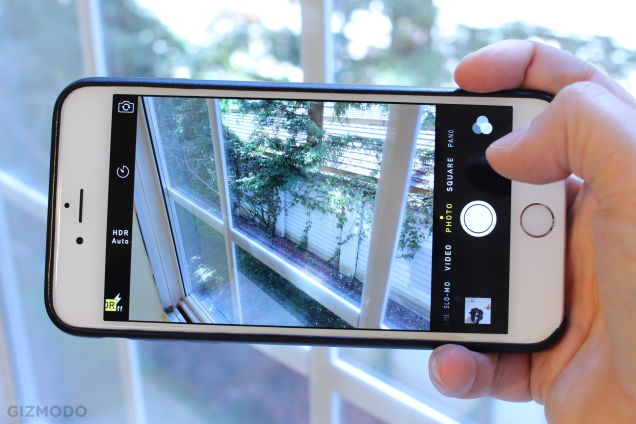
Take a photo with your headphone cord: Now that you can use the volume up or down buttons to snap a photo, steady your hand while framing up the photo and when you're ready to take the picture, press the button on the cord so it won't shake the iPhone. Voila!
Dismiss suggested words: If you're typing an email or note and the virtual keyboard is suggesting the correct spelling of the word — and you don't want to accept it — you don't need to tap the tiny "X" at the end of the word in question. Simply tap anywhere on the screen to close the suggestion box.
Take photos faster: Even if your iPhone is locked you can double-tap on the Home button and you'll see a camera icon you can tap to open the camera immediately. Now you can use the volume up button to snap the photo, too. You can also use the volume up on the headphone cord to take a photo (if you want to) and pinch the screen to zoom instead of using the slider bar.


Use location-based reminders: You probably know Siri can be used to set a reminder, like saying "Siri, remind me to call mom at 4pm today." But did you know you can set location-based reminders on your iPhone 4S? Say "Remind me to call mom when I leave here" or "Remind me to call mom when I get home" and you'll be notified accordingly.


Get word definitions: Apple has recently added a built-in dictionary and you can access it in most apps that let you select a word. Simply press and hold on a word — such as in an email, reminder, iBooks, and so on — and you'll see a pop-up option for "Define."


Revive a frozen iPhone: If your smartphone freezes on you and pressing the Sleep/Wake button on top of the device doesn't do anything, don't panic. Instead, press and hold the Home button and the Sleep/Wake button at the same time. The phone will automatically shutdown. This so-called "hard reset" resuscitates the frozen iPhone. You'll first need to wait through a full shut down and restart.


Get more done in less time: You can create shortcuts to words and phrases you use a lot, such as Northern California Association for Employment in Education. In Settings, go to General, then Keyboard, and select Add New Shortcut. Now you can add new words or phrases and assign shortcuts to them (such as "NCAEE," in the above example, and it'll type out the full word each time.


See a 6-day weather forecast: If you're one of the many weather junkies out there, you probably know you can swipe down the iOS device's screen and you'll see the Notifications center. Weather will be at the top, but did you know you can swipe to the left or right and you'll toggle between current conditions and a 6-day forecast? Plus, jump to the Weather app by tapping anywhere on the weather bar inside Notifications screen.


.Select URL domains faster: When typing a website address in Safari, you don't have to type the ".com." For example, you can type "yahoo" in the URL box to get to yahoo.com. On a related note, you can press and hold down the .com button and you'll see a list of alternatives to choose, such as .net, .org and .edu.


Make your own ringtone: Don't settle with the ringtones provided by Apple and you need not pay your carrier for more of them. As the name suggests, the free Ringtone Maker app lets you take a clip from your favorite songs and make ringtones out of them in seconds.


Feel and see when people call: Apple has added a number of accessibility features to the latest version of ios specifically designed to assist those with hearing, vision, mobility and other disabilities. For example, those who are hearing impaired might opt to have the LED flash when a call comes in. If you're seeing impaired, you could set a unique vibration pattern for different people in your Contacts, so you know who's calling.


Find your lost iPhone: As long as you sign up in advance, the free Find My iPhone app will help you locate your device on a map (on your computer or other iOS device). You can display a message or initiate a loud ring (in case it's under the cushions), or remotely lock or wipe its data.


Save photos in Safari: You're surfing the web in Safari and stumble upon a photo you'd like to save. Simply press and hold on a photo when on a website and you'll be prompted with a menu asked if you'd like to "Save Image." Once the photo is saved, you can view it offline, email it or set it as wallpaper.


Take an iPhone screen grab: On a related note, if you want to take a screenshot of a website or application, press down on the Home button and tap the Sleep button. You'll hear the camera click, see a white flash and the screenshot will be saved to your Camera Roll..


Get new sounds: It's been a long time coming, but Apple has added the ability to select custom tones for incoming text messages, new emails, voicemails, tweets, calendar alerts, reminders and more. You can select something you like from within the Sounds menu. You'll also notice you can scroll to the top of this list of sounds and you'll see a "Buy More Tones" option, which takes you to iTunes.


Move to the top of the page: In Mail, Safari, Contacts and other apps, simply tap the status bar at the top of the screen — the area that displays time, battery and cell bars — to jump back to the top quickly.

Prolong your battery: Speaking of the battery, here's how to squeeze more life out of your iPhone between charges. Turn down the brightness of your screen, turn off wireless radios you don't use (such as GPS, Wi-Fi or Bluetooth) and reduce the number of apps with info you have "pushed" to your phone. Also, make sure you lock it before putting in your pocket, purse or backpack or else it could turn on and drain the battery.
Spread out the keyboard: Here's a tip for iPad users: If you like typing while holding the tablet, rather than stretch your fingers or thumbs for those middle letters like G, H, Y or B, you can drag the keyboard to each side of the screen to separate it into two, allowing you to easily type while holding it.
Great gestures: Close any app ridiculously fast by putting your four fingers and thumb stretched on the screen and pinch inwards. Sweet! You can also magnify what's on your iPhone screen with a three-finger tap. You'll first need to go to Settings, General, Accessibility, and select the various gestures options here.
Create an "app" out of a website you visit often: To add a website to your Home screen, just visit the webpage in Safari and at the top of the screen, tap the Go To icon and select "Add to Home Screen."
Create a music playlist on the go: You no longer need a computer to create a playlist. In the Music app, tap Playlists, then select Add Playlist and give it a name ("Marc's Workout Mix"). Now, tap any song (or video) to add it to the playlist. You can add individual songs, entire albums, or all songs by a particular artist.
Delete messages in bulk: You can delete unwanted emails en masse rather than deleting one at a time. In your Inbox, simply click the Edit button and check off the emails you want to delete with your finger and then choose Delete.
Keep track of your texting limits: If you don't have the best texting plan and don't want to unnecessarily pay to send more texts than you need, here's a tip to turn on the character count in the Messages app. Enable this in the Settings>Message option to keep an eye on your word count. Usually, your one text becomes two after 160 characters.
Mirror your iPhone with your TV: If you own an Apple TV, you can instantly and wirelessly share exactly what's on your iPhone 4S and later versions or second- and third-generation iPad with your HDTV, connected to an Apple TV — such as games, apps or videos. Simply double-tap the Home button, swipe all the way to the right and select AirPlay Mirroring.

Click the "contact us" button and send us feedback or leave a comment in the comment box.